05 November 2007

Thing 12: Roll your own search engine

Listen to this podcast [1:32]-->powered by ODEO

Do you have a group of websites that are your favorites? Or a set of online resources that are similar that you frequently use to answer homework or reference questions? Well Rollyo may be the tool for you. Rollyo allows you to create your own search tool for the just the websites you know and trust.

Take a look at some of these search rolls that have already been created:

Here’s a search roll created to search ten of the Public Library of Charlotte and Mecklenburge County's family of web sites.

Try a search for broad terms like "homework” or “history” to see results listed from multiple sites.

Discovery Exercise

  1. Explore Rollyo and create an account for yourself.
  2. Create a search roll for any subject you like.
  3. Create a post in your blog about your experience and link to your search roll. Can you see a potential use for tools like this?

OPTIONAL: Add your search roll to your blog using the "Create a Searchbox" tool.

Rollyo - You just never know when this little tool might come in handy.

Thing 11: A thing about LibraryThing

Listen to this podcast [1:52]-->powered by ODEO

Are you a book lover or cataloguer at heart? Or do you enjoy finding lost and forgotten gems on the shelf to read? Then LibraryThing may be just the tool for you. Developed for book lovers, this online tool not only allows you to easily create an online catalogue of your own it also connects you to other people who have similar libraries and reading tastes. Add a book to your catalogue by just entering the title -- It’s so easy that you don’t even need MARC record training to do it – or connect with other users through your similar reading tastes. There are lots of ways to use LibraryThing. You can even view your books on a virtual shelf, add a widget to display titles that are in your catalog or install a LT Search box on your blog.

So why not join the ranks and create your own library online. With over 65,000 registered (BTW: LibraryThing also has group forum for librarian users and over 4.7 million catalogued books, you're bound to discover something new.

Discovery Resources


Discovery Exercise


  1. Take a look around LibraryThing and create an account.
  2. Add a least 5 books to your library.
  3. Blog about your findings and be sure to link to your LibraryThing catalogue.

Thing 10: Play week

Listen to this podcast [1:00]-->powered by ODEO

Generators? No, I’m not talking about those gas powered back-up things. The generators I’m talking about allow you to easily manipulate image and graphics to create fun images - one of my favourites is FD Toys.

For this discovery exercise, I just want you to have fun. Find a few fun image or text generators to play around with and write a post in your blog about one of your favorites and display the result. Often adding the image you mocked up to your blog is as simple as copying and pasting code that the page provides. If not, you may just need to right click on the image and then save it to your hard drive before using Blogger’s image button to add it to your post.

If you’re having difficulty getting your image added to a post in your blog, ask a co-worker for help. In looking at several staff blogs, it’s easy to see that we have lots of people in the system who have figured out how easy it is to add images to their blogs.

Discovery Resources

Discovery Exercise

  1. Play around with some image generators and find one that you like.

  2. Post the result of your discovery process in your blog. Note: Be sure to include a link to the image generator itself, so other participants can discover it too.

So take some time and have fun with this exercise. And remember to be tasteful too!

29 October 2007

Thing 9: Finding feeds


Listen to this podcast [3:08]-->powered by ODEO

Now that you have a newsreader (your Bloglines account), you can begin adding other newsfeeds that interest you. There are several ways you can locate newsfeeds:

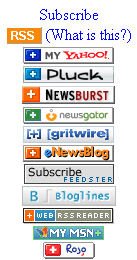
  • When visiting your favorite websites -- look for news feed icons that indicate the website provides it. Often a feed icon will be displayed somewhere in the navigation bar of the site. (Here's an image that contains a sampling of several feed icons).
  • Use Bloglines' Search tool - Bloglines recently expanded search tool lets you search for news feeds in addition to posts, citations and the web. Use the Search for Feeds option to locate RSS feeds you might be interested in.
  • Other Search tools that can help you find feeds:
    • Feedster - One of the largest collections of RSS feeds, Feedster lets you search for feeds in three categories: news, blogs & podcasts
    • Topix.net - This search tool allows you to locate recent newsfeed items based upon keyword or phrase searching. The tool focuses specifically on news and media outlet RSS feeds for information, not weblogs.
    • Syndic8.com - Syndic8 is an open directory of RSS feeds that contains thousands of RSS feeds that users have submitted.
    • Technorati - Technorati is a popular blog finding tool that lets you search for blogs. Since RSS feeds are inherent to all blogging tools, Technorati Blog Search can help you find RSS feeds for topic specific blogs you may be interested in.
    • Additonal Resource: Technorati Tutorial on finding and adding your blog
Discovery Exercise

  1. Explore some of the search tools noted above that can help you locate some news feeds.
  2. Create a blog post about your experience. Don't know what to blog about? Here some questions to think about ...
  • Which method of finding feeds did you find easiest to use?
  • Which Search tool was the easiest for you?
  • Which was more confusing?
  • What kind of useful feeds did you find in your travels? Or what kind of unusual ones did you find?
  • What other tools or ways did you find to locate newsfeeds?
EXTRA STUFF -- Feed icon information:

In February 2006, the adoption of a standard feed icon among websites and browsers finally began to assist in stopping the madness and confusion caused by so many variations. So far this icon has been adopted by many websites and browsers, including Opera and FireFox, where it displays in the address bar:


The next release of Internet Explorer is suppose to have this as well. For more information about this emerging new standard, see Feedicons.com

Thing 8: Make life "really simple" with RSS and a newsreader


Listen to this podcast [5:15]--> powered by ODEO

You’ve heard of RSS? You’ve seen those small funny tags on websites? You’ve heard co-workers and acquaintances swear by it, but still have no idea what RSS is? Well don’t worry, according to a recent survey you’re still in the majority, but this is changing rapidly. In the information world, RSS is not only revolutionalising the way news, media and content creators share information, but it also is swiftly changing the way everyday users are consuming information.

RSS stands for “Really Simple Syndication” and is a file format for delivering regularly updated information over the web.

Just think about the websites and news information sources you visit every day. It takes time to visit those sites and scour the ad-filled and image-heavy pages for just the text you want to read, doesn’t it? Now imagine if you could visit all those information sources and web pages in just one place and all at the same time … without being bombarded with advertising… without having to search for new information on the page you’d already seen or read before… and without having to consume a lot of time visiting each site individually. Would that be valuable to you? Well, it’s available now through a newsreader and RSS.

This week’s discovery exercises focus on learning about RSS news feeds and setting up a Bloglines account (a free online newsreader) for yourself to bring your feeds together.

Discovery Resources

Discovery Exercise

  1. Follow the discovery resources above to learn more about RSS and newsreaders.
  2. Create a free online Bloglines account for yourself and subscribe to at least 10 newsfeeds to your reader. See Using Bloglines Tutorial steps 1-3 for instructions.
  3. Create a post in your blog about this exercise. Optional: If you're up to the challenge, you can provide the URL address to your public Bloglines account (find where to find this below).

Don’t know what to blog about?
Think about these questions: What do you like about RSS and newsreaders? How do you think you might be able to use this technology in your work or personal life? How can libraries use RSS or take advantage of this new technology?


How to find your public Bloglines URL:

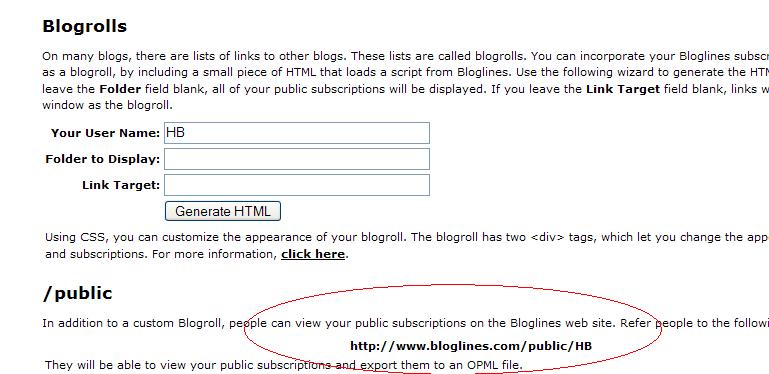
  1. Click on the Share tab within your Bloglines account. Scroll down the right screen pane and locate the public URL (see screenshot)

  2. Be sure to add this as part of your post to demonstrate your completion of this activity.

In conclusion ... here is link to my public Blogline's account:
http://www.bloglines.com/public/hb


Why have a public account? To share blog rolls with others, of course. That's how the L2 participants list is updated; it's powered through a public blogroll. :)


PS: Once you tackle this discovery exercise, you've tackled the most difficult one of the whole 23. :)